
Validate Your KDP PDFs & Preview the Book in 3D
KDP rejections cost days: upload, wait for review, get bounced with “text or images outside the margin” or a cover dimension mismatch, guess at a fix, re-upload, repeat. The Validate tab is a local preflight check — it runs the same class of checks in seconds, before Amazon ever sees the file.
Interior PDF Audit
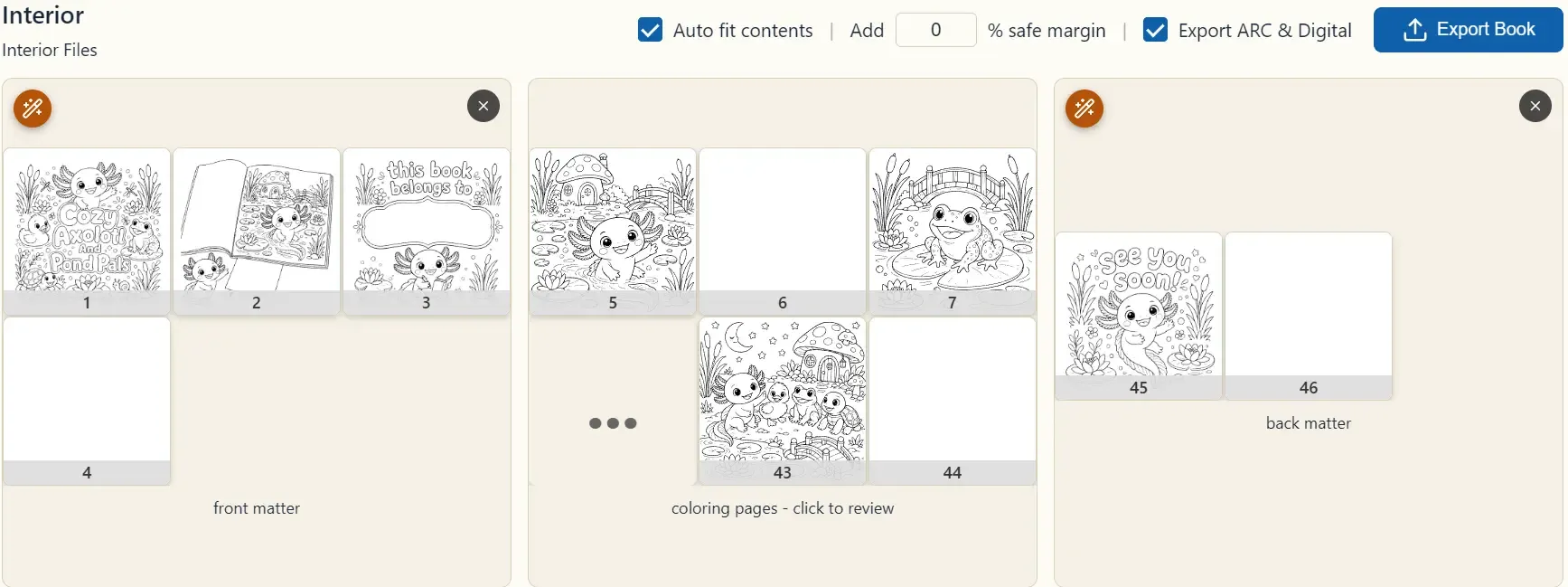
Section titled “Interior PDF Audit”Drop your exported interior PDF (or any interior PDF) onto the Interior PDF panel. Three checks run immediately:
- Page count — at least KDP’s minimum (“Only N pages (KDP requires ≥ 24)” if not).
- Dimensions — every page must match your project trim size exactly; mismatches are counted and the first offender identified.
- Safe area — content that overflows KDP’s printable safe area is flagged per page, with a clickable list that jumps straight to each offending page in the viewer.
Cover PDF Audit
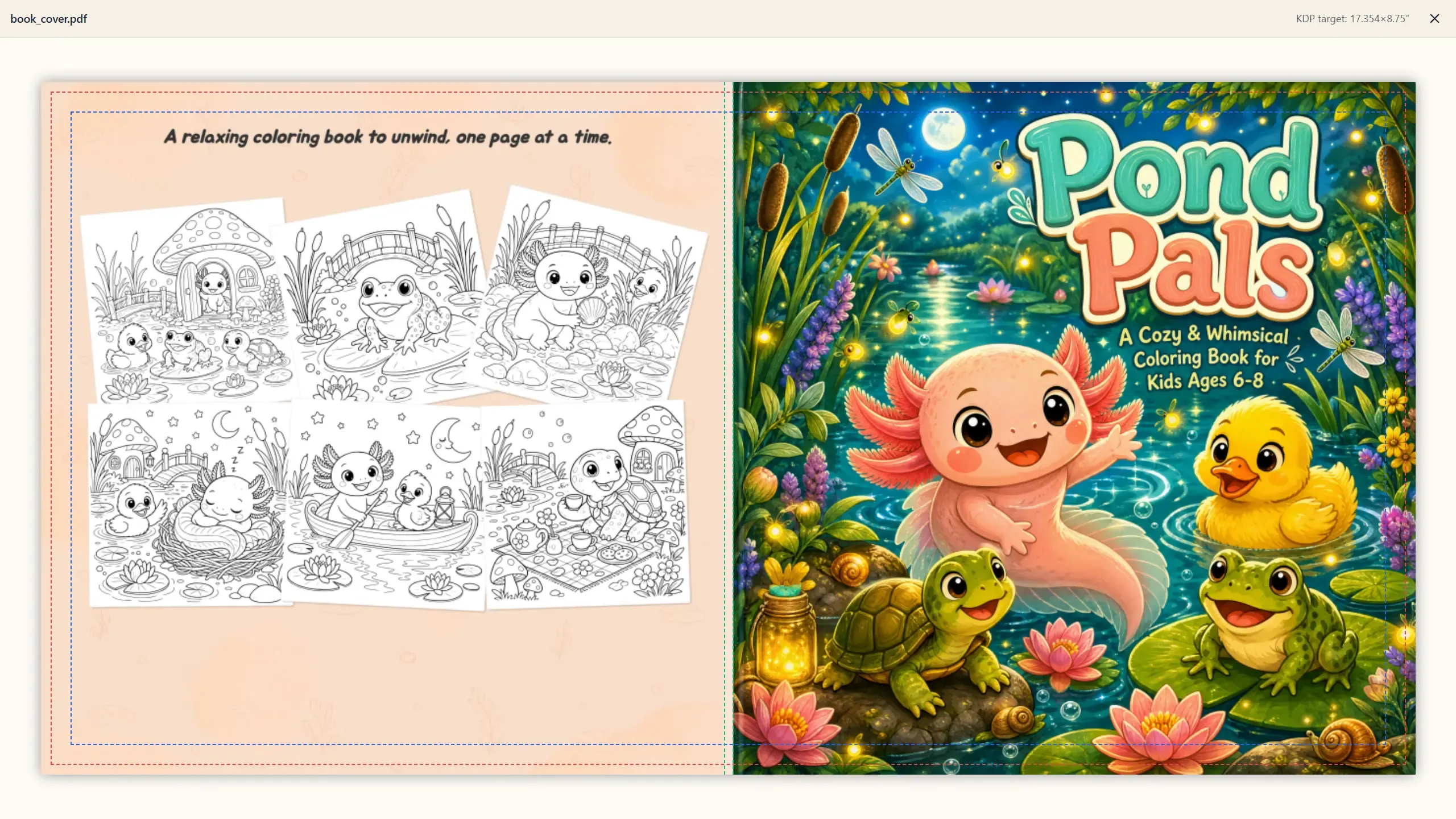
Section titled “Cover PDF Audit”Same drill on the Cover PDF panel:
- Single page — a cover PDF must be exactly one page.
- Dimensions vs. KDP cover spec — checked against the spine width for your actual page count, with expected-vs-got sizes shown on failure.
- Spine consistency — if the cover was built for a different page count than the interior you loaded (“Cover spine assumes 108 pages but interior PDF has 96”), you’ll know before Amazon does.
The 3D Preview
Section titled “The 3D Preview”With both PDFs loaded, Open 3D viewer unlocks: a physically-sized 3D book you can rotate, pan, zoom, open, and page through — front cover, spine thickness, page flips, all of it.
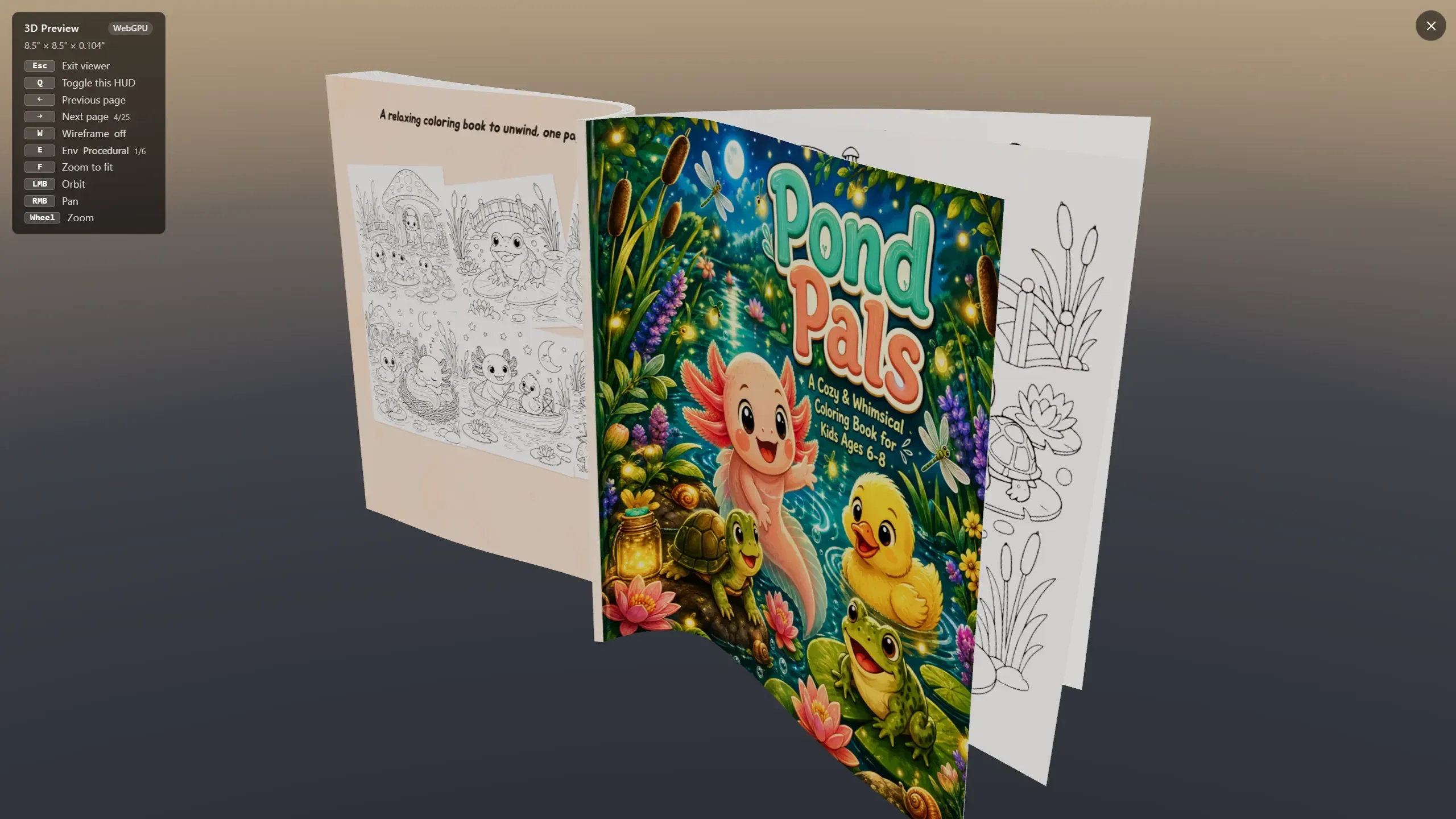
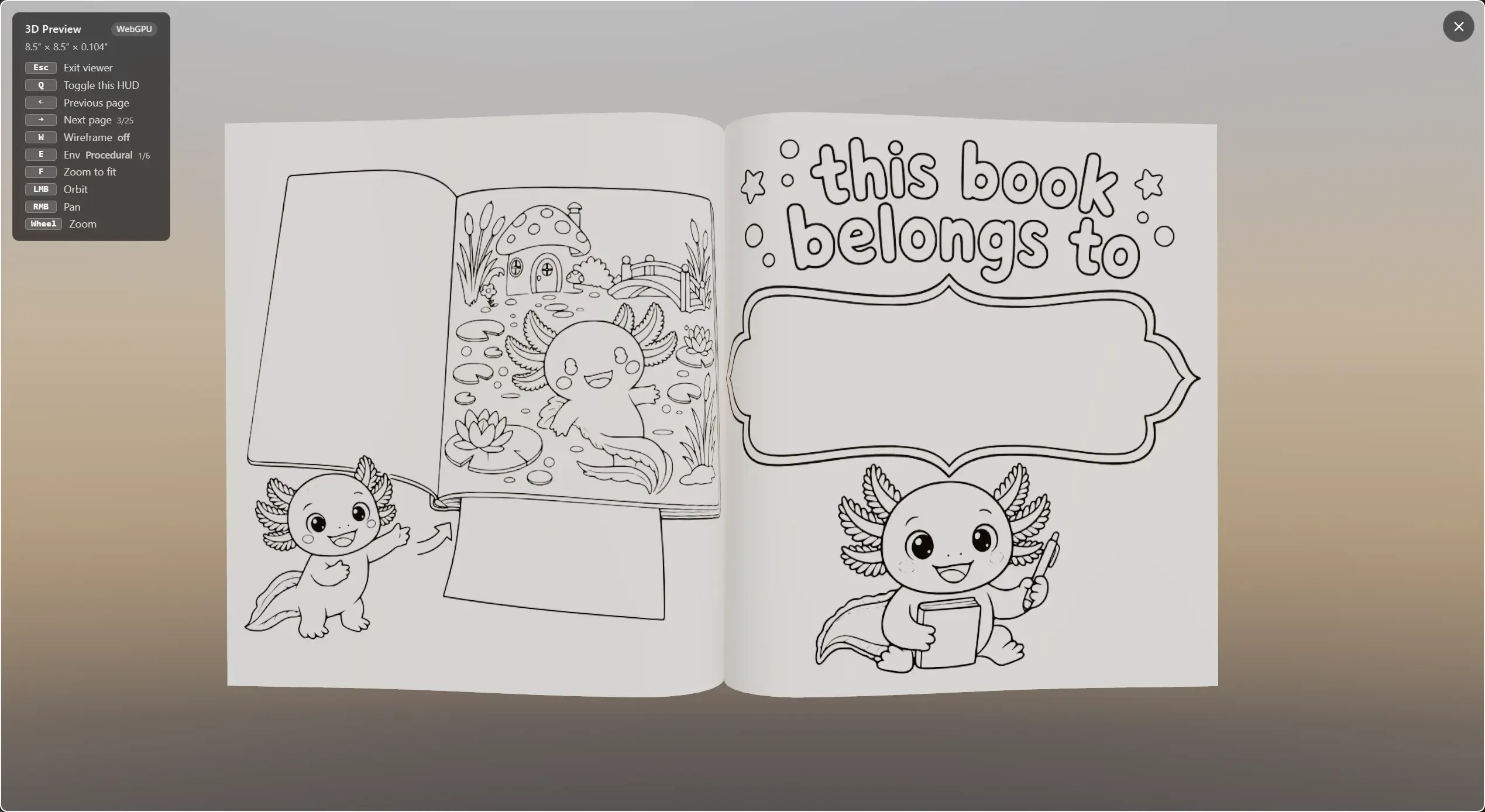
It’s the closest thing to holding the proof copy without ordering one, and it regularly catches things audits can’t express: a spine title that’s too tight, a back-cover collage that feels crowded.
When everything passes, you’re ready to upload to KDP.