
Import Your Own Images into the Pipeline
You don’t have to generate your pages — the import dialog brings your own images into the pipeline, where Process and Vectorize treat them exactly like generated ones. Open it from the first-visit dialog (Import Images) or any time later via the Import images toolbar button on the Make tab.
The Import Dialog
Section titled “The Import Dialog”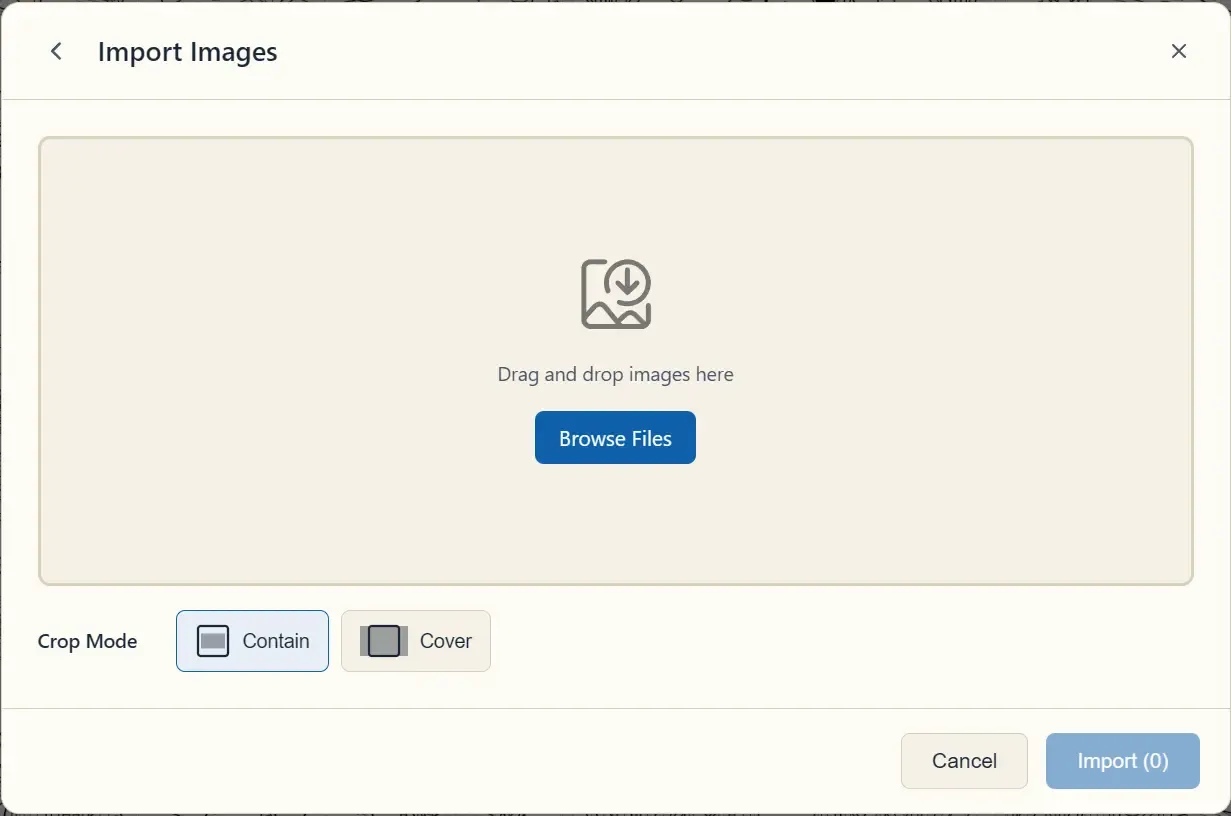
- Adding files — drag & drop onto the drop zone or click Browse Files (JPG, PNG, WebP).
- Slot grid — each slot is one page of your book. Drag thumbnails between slots to control which image lands on which page. Slots already holding a generated image show an Overwrite tag when you assign a replacement.
- Crop Mode — how images that don’t match your book’s aspect ratio are fitted: Contain fits the whole image and may leave white borders; Cover fills the page and crops the edges.
- Clear All — empties every slot; Import (n) runs the import (the count shows how many pages will be written).
Imported images replace existing pages only in the slots you filled — everything else is untouched.