
Assets: Masking, Path, and Compile
The Assets stage computes how each page gets “colored in” for the videos. Three tabs run in order — Masking → Path → Compile — and an About tab explains the pipeline in-app. Everything is local and free; Run All on each tab (or Run Rest where available, to fill only what’s missing) is usually all you need.
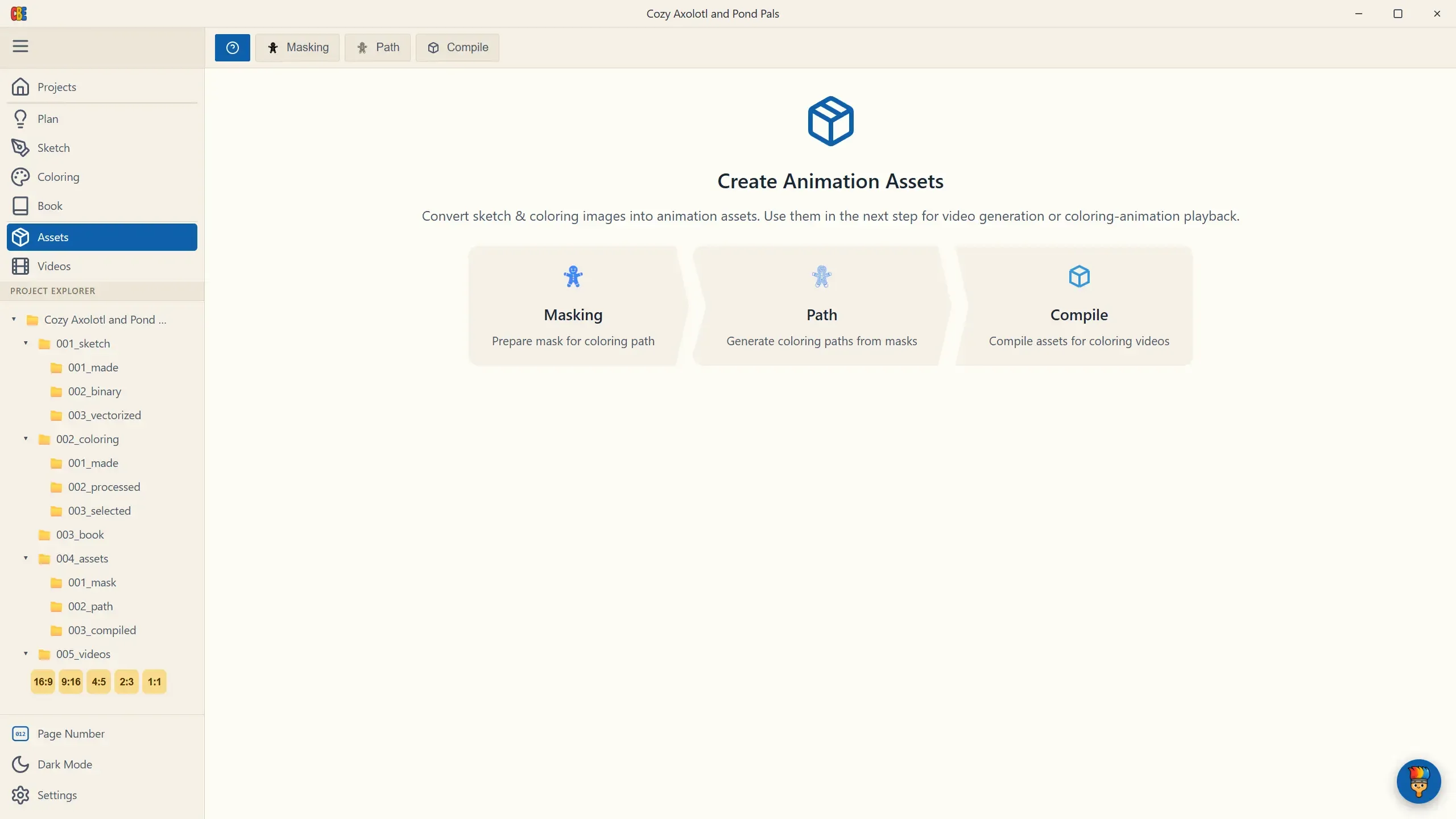
Masking
Section titled “Masking”Masking decides which regions of each page receive color.
| Control | What it does |
|---|---|
| Remove White toggle (default: on) | Excludes the white paper background from the mask, so color lands only inside the artwork. |
| Object Mask toggle (default: off) | Isolates the main object and blacks out the background entirely — for pages where only the subject should animate. The ? button shows a visual before/after explainer. |
| Run All | Masks every page (asks before overwriting existing masks). |
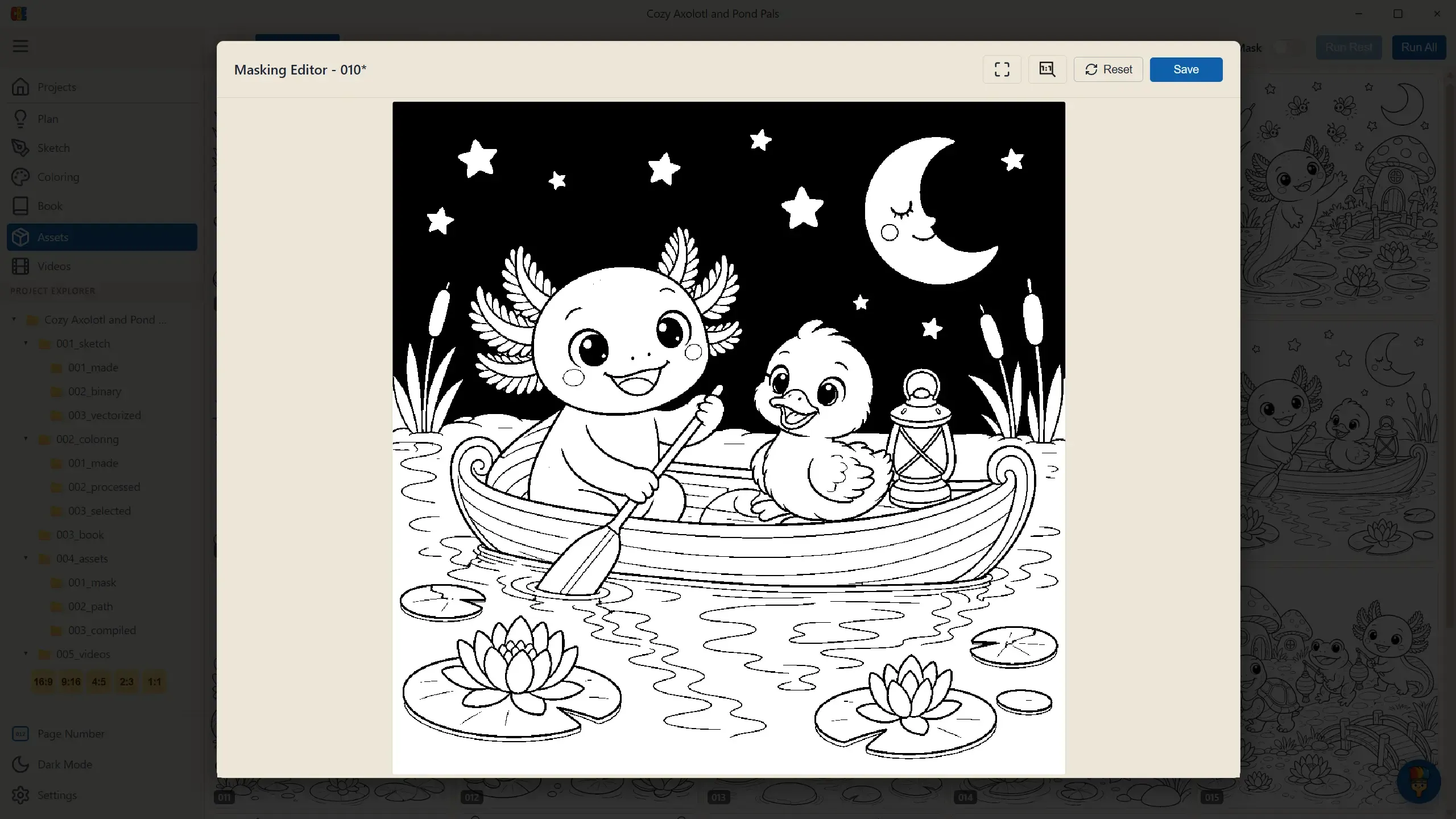
Clicking a finished mask opens the Masking Editor — a full-screen touch-up tool with flood fill (click any region to paint it black), wheel zoom, right-drag pan, Zoom to Fit (F) / 1:1 (R), and Reset to return to the original. Use it when a mask leaks into a background gap; usually a couple of clicks fixes it.
A yellow card means the page’s processed sketch is missing — finish Sketch › Process for that page first.
Path turns each mask into the actual coloring strokes.
| Control | What it does |
|---|---|
| Fill pattern dropdown | In & Out (default) — strokes work from the region edges inward, like careful pencil work. Spiral — a continuous spiral fill, a different visual personality. |
| Run Rest / Run All | Generate paths for missing pages / all pages. |
Path generation is the heaviest local computation in the app, so it automatically paces itself when your machine is busy (it waits if free memory or CPU headroom gets tight) — you may see items briefly queue on a loaded machine. That’s normal.
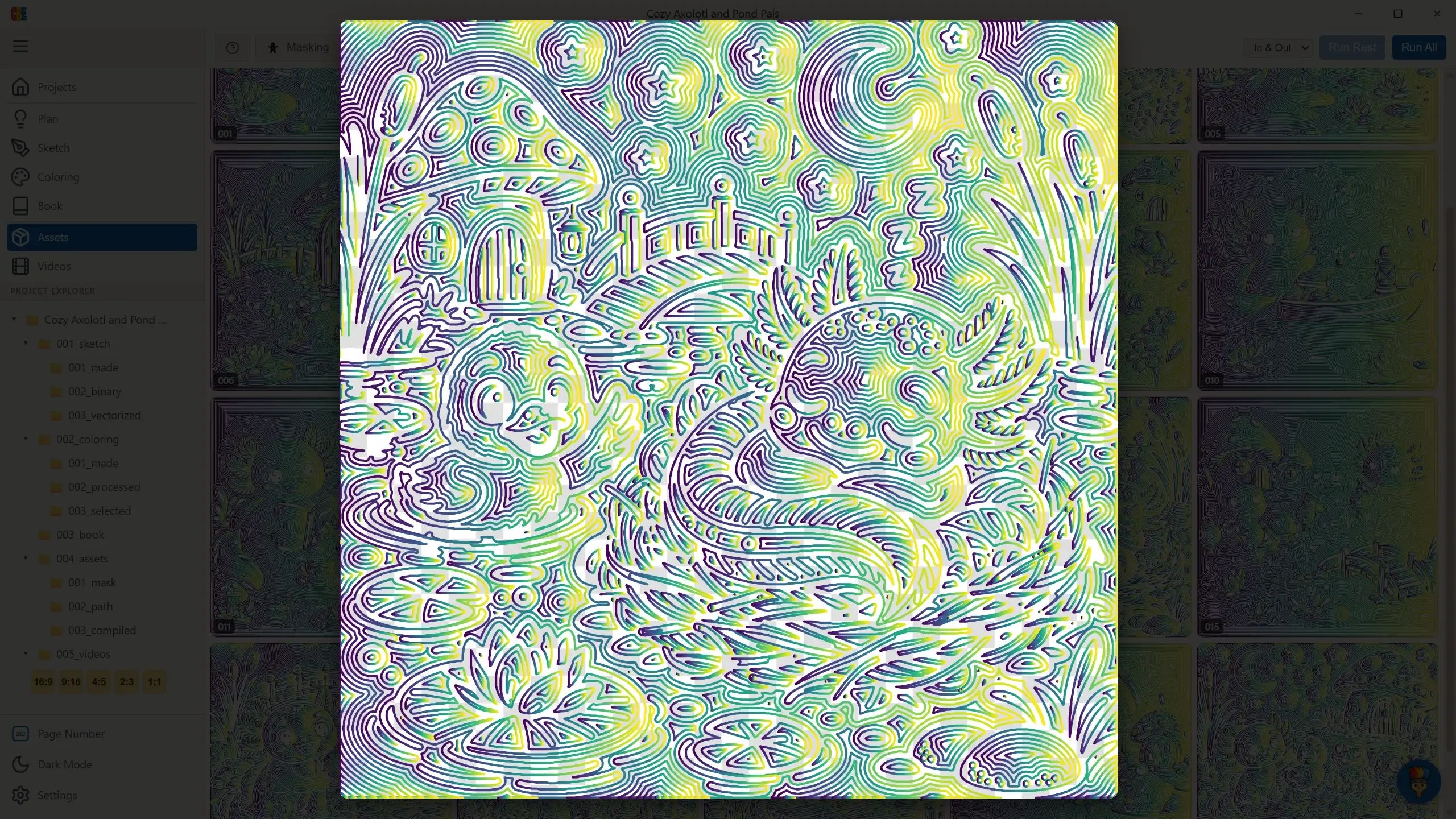
Click a finished item to inspect its paths — the rainbow rendering visualizes stroke order across the page:
Compile
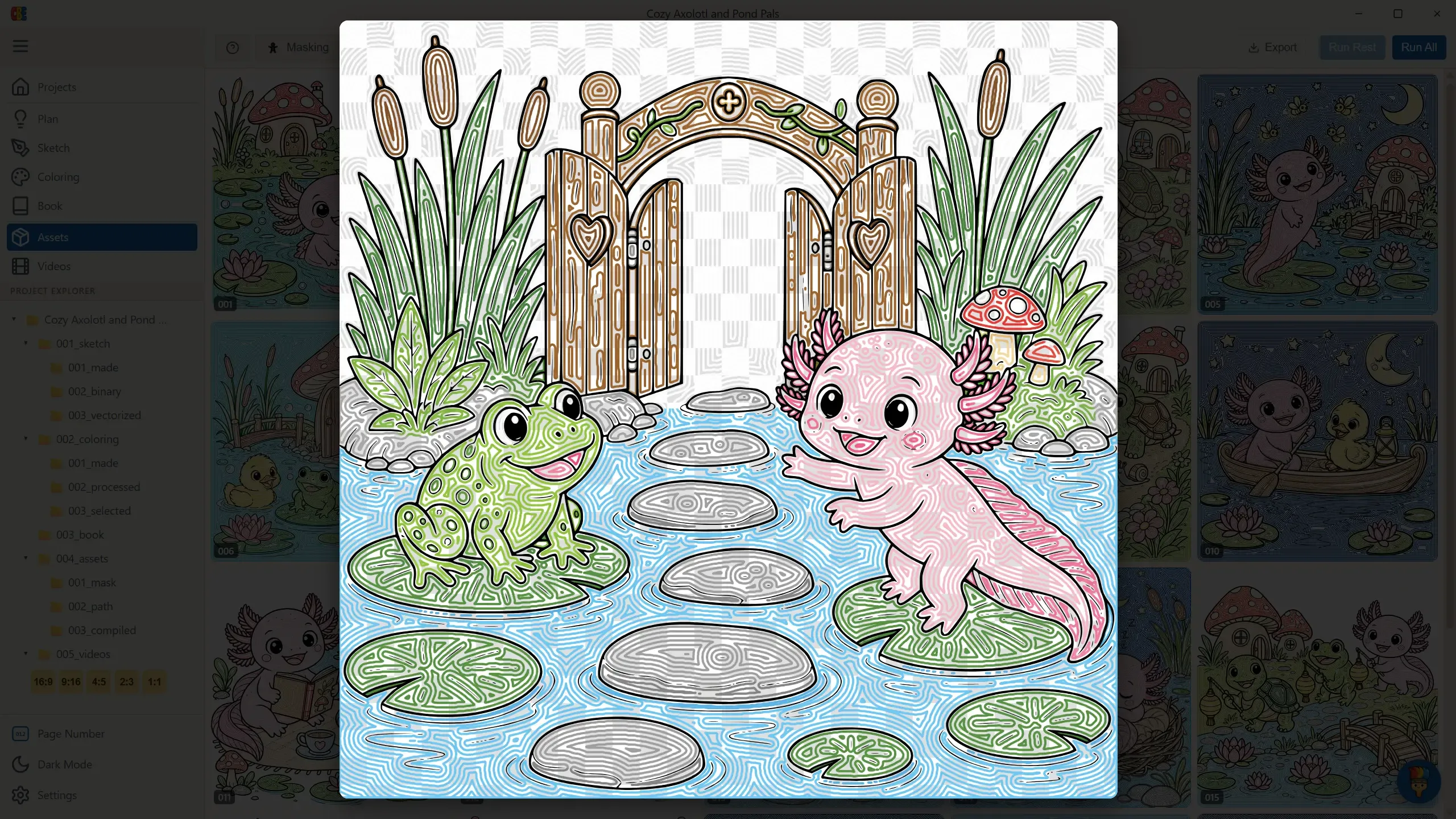
Section titled “Compile”One Run All bundles the masks and paths into the final animation assets the video renderer consumes. Click any compiled preview to inspect the composition full-screen — a mid-coloring snapshot of exactly how the animation will paint the page:
When this grid is full, you’re ready for Videos.