
Image Pool: Consistent Characters & Style Anchors
The Reference Image Pool (on the Brainstorm tab) is where you teach the app what your book should look like:
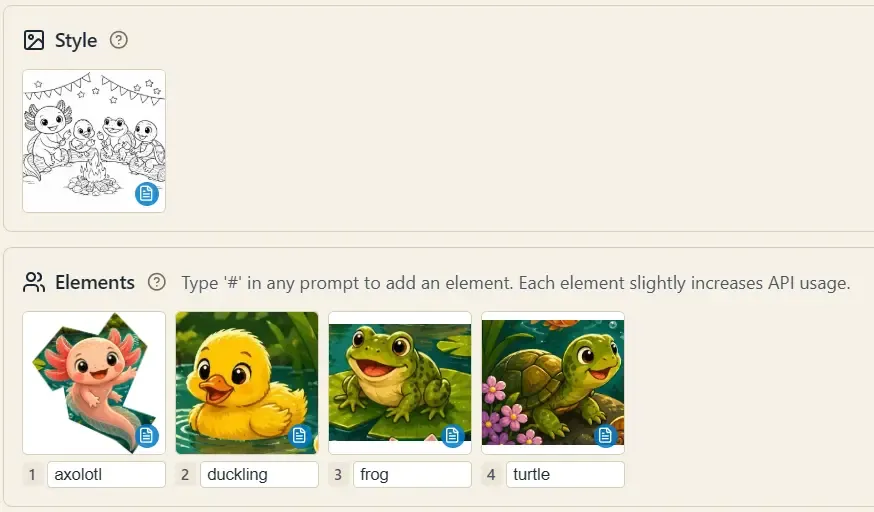
It holds two kinds of images, and the distinction matters:
Upload one or more images whose visual style you want — line weight, proportions, mood. The subject of the image doesn’t matter; only the style is used.
- Each style image is analyzed once by a vision model on upload (you’ll see a small badge when the cached description is ready). After that, generations reuse the cached description — no repeated vision cost.
- In the Sketch stage, you pick one of these as the style anchor, which locks the whole book’s art style. With reference-capable models (gpt-image-2, Gemini) the image itself is also attached for the strongest effect.
Elements (Named Characters & Objects)
Section titled “Elements (Named Characters & Objects)”Register characters, objects, animals, or scenes that recur across the project — your book’s cast:
- Upload and name each one. Names are limited to 15 characters with no spaces (e.g.,
Sunny). A name field with an amber border means the name is missing; red means it duplicates another element. - Use them anywhere with
#. In any prompt field across the app — brainstorm answers, planning table cells, edit dialogs — typing#opens a picker, and the reference is inserted as{Sunny}. That page’s generation then receives Sunny’s reference image, so the character looks the same on page 3 and page 43. - Break into elements — the scissors button on an uploaded image opens a cropping tool: box or lasso each subject in a group image, name the crops, and they become separate pool entries:
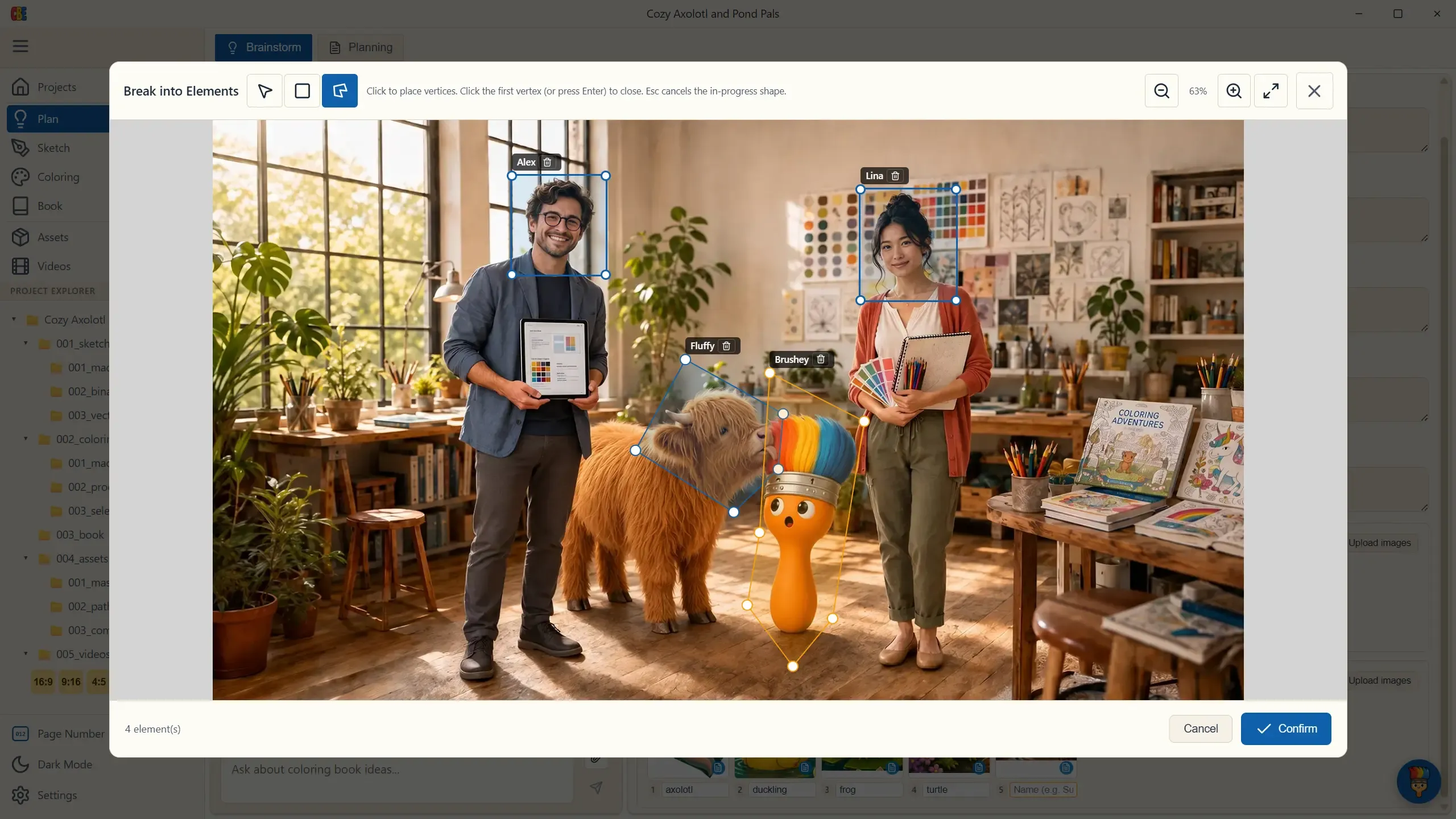
A practical note shown in the app is worth repeating: each element mentioned in a prompt slightly increases API usage (the reference image rides along with the request). Mention the characters a page actually needs, not the whole cast.
Upload Rules
Section titled “Upload Rules”PNG, JPEG, and WebP up to 10 MB per image, via the Upload images button or drag & drop directly onto the Style or Elements section. Hover any thumbnail for a delete button.