
Create Your First Coloring Book Project
A project in Coloring Book Engine is one coloring book — and one folder. The plan, the pages, the cover, the videos: your entire unit of work stays organized inside a single folder you choose, easy to back up, move, or archive as one thing.
The Whole Journey at a Glance
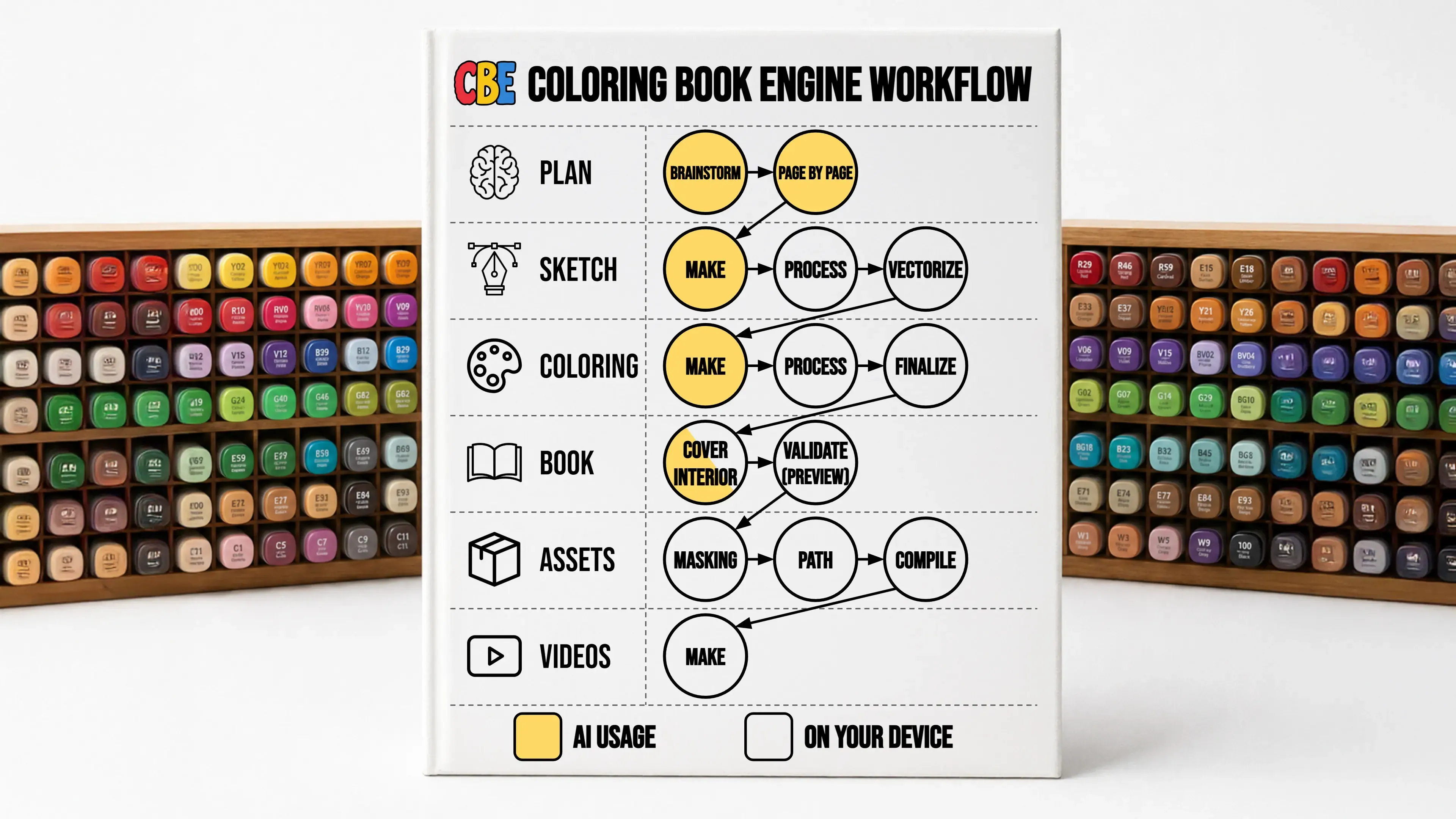
Section titled “The Whole Journey at a Glance”Here’s the road ahead — every stage and sub-step, and where AI is involved (yellow) versus what runs free on your device (white):
Create a New Project
Section titled “Create a New Project”From the Projects screen, choose Start New Project:
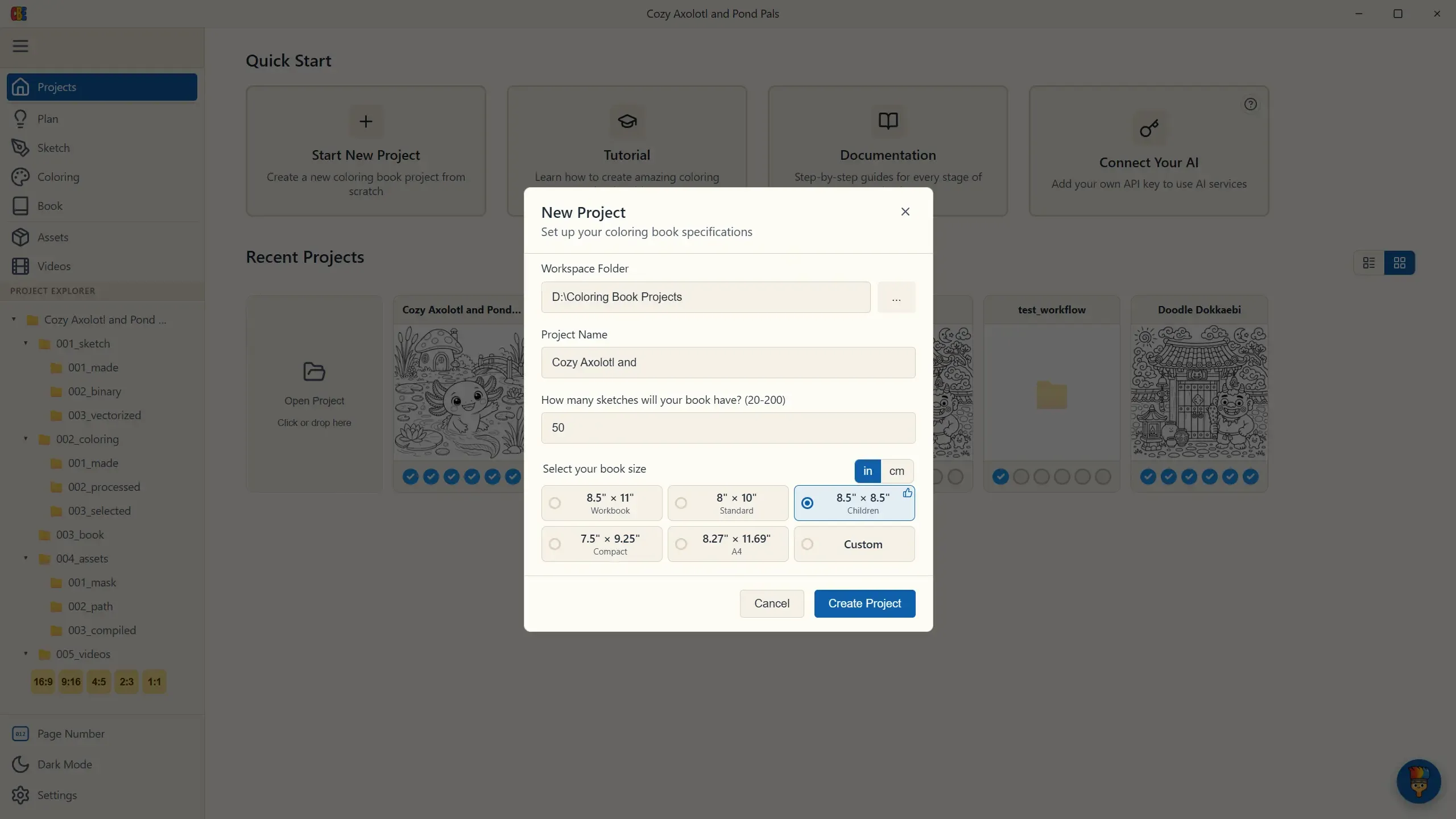
You only make three decisions here:
- Where it lives — pick a workspace folder. Each book becomes a folder inside it, so your whole catalog stays organized in one place.
- How many pages — anywhere from 20 to 200. Most coloring books sold on KDP land in the 40–50 page range, and 50 pages is the sweet spot: the most customer value you can offer without crossing into KDP’s higher printing-cost bracket.
- Book size — pick one of the popular KDP trim-size presets: 8.5″ × 11″ is the classic coloring-book format, and the 8.5″ × 8.5″ square dominates today’s adult-coloring bestseller lists. (You can also enter a custom size in inches or centimeters.) Everything downstream — image dimensions, cover spine, export margins — is derived from this choice automatically, so you never have to think about trim, bleed, or gutter math again.
That’s it. No style setup, no templates, no configuration — the creative decisions happen in the next stage, Plan.
Reading the Progress Dashboard
Section titled “Reading the Progress Dashboard”The Projects screen doubles as your production dashboard. Each project card shows a row of six status dots — one per stage (Plan, Sketch, Coloring, Book, Assets, Videos). Filled dots mean the stage is complete, so you can see at a glance which book needs what:
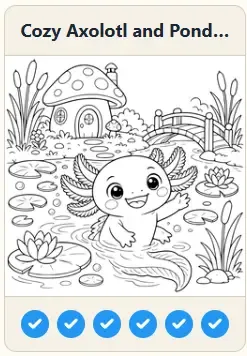
- A book with four dots filled is waiting on its cover and videos.
- A freshly created book shows six empty dots — a to-do list in miniature.
If you work on several books at once (most publishers do), this view is how you decide what to work on today. Opening any project drops you exactly where you left off.
Before diving in, take one minute for the app conventions — three rules that hold on every screen.